
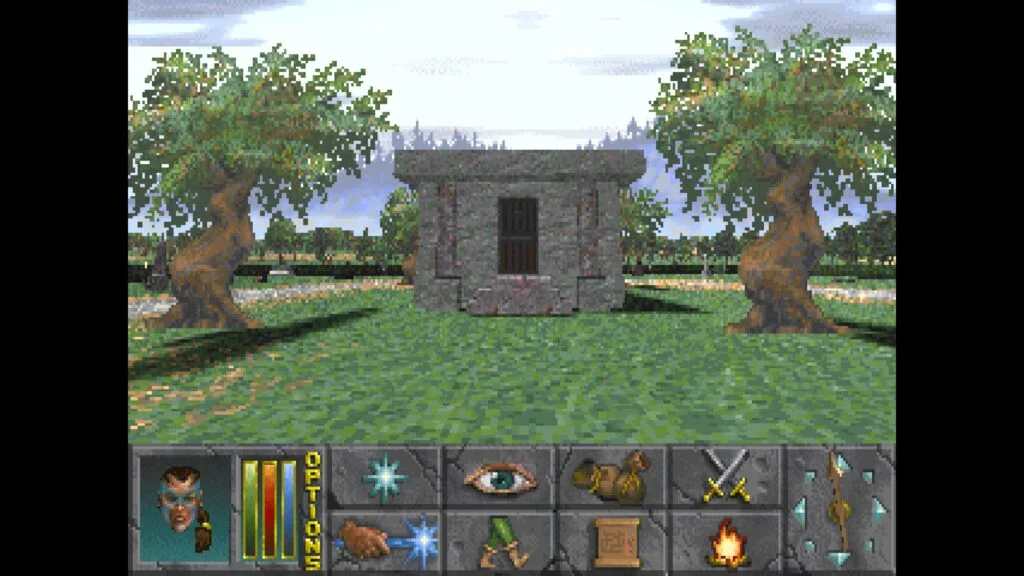
Get your own game files
The browser client is an open-source reimplementation. It still needs the original Daggerfall data from your own copy. The Steam edition is available free; our game-files guide explains where to find ARENA2.
You select files on your device. We do not bundle the original game or ask you to email it to us.
Open the client
Open the homepage game panel or dedicated game page and choose Play Daggerfall Online. A WebGL2 check runs before the embedded client starts. Follow the client's file picker; use the supported folder or ZIP option shown on your device.
The first import can take time. Keep the page open, and do not clear your browser storage while importing or saving.
Create a character
Use the game's own character creation and save menus. Browser files and local progress belong to s.daggerfall.online and this browser profile. If you used an earlier client on daggerfall.online, export your saves there before importing them into this client. A different device needs its own copy of the original files.
Start multiplayer
Use Online in the startup menu, sign in with your own community account and choose New online character. Finish the creation steps and select Begin your life.
Follow the screenshot steps in the multiplayer guide to chat, send Invite to party and accept the invitation. Privateer’s Hold is solo: leave separately and meet at an outdoor landmark.
On a phone or tablet
Start in landscape orientation. The client includes touch controls; performance and available browser features depend on your device. If the embedded view is cramped or file selection fails, use Open full page.
Keep enough free device storage for imported files and saves. Mobile operating systems may remove browser data; retain your original files and use verified save export options before clearing storage.
First time here?
Follow the complete beginner walkthrough for the download links, folder and ZIP import steps, BSA files, and what to do after startup.
Read the beginner guide →