
DFO ONLINE · PLAY WITH FRIENDS
Daggerfall Online multiplayer,
one step at a time.
Play together in your browser. This screenshot guide takes you from Online to your first party and outdoor meeting. New to DFO Online (dfoonline)? Download and load your game files first.
Multiplayer is playable. Each player needs their own account and ARENA2 files. Start playing ↗
Step 1 of 6 · Find Online
STEP 1 · WHAT TO DO
Find Online in the main menu
- Open the game below. If this is your first visit, follow the beginner guide to download and import the complete ARENA2 folder or ZIP.
- Already in the world? Save first: open the menu → System → Save Game. Then choose Exit → Leave this game and confirm Exit.
- At the startup menu, select Online on the left. It is not a tab in the in-game Tutorials menu. Sign in using your own community account when prompted.
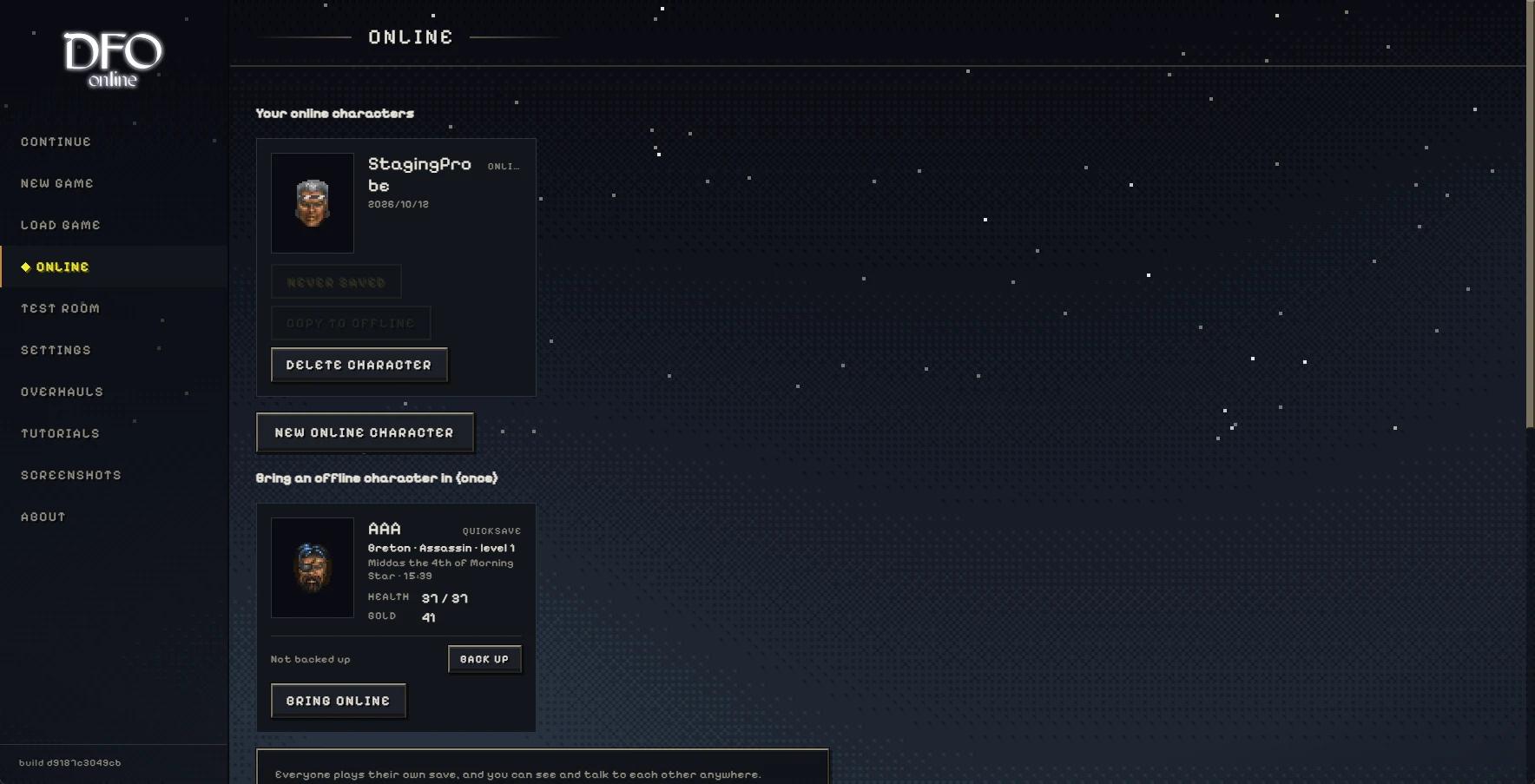
Why this step matters
Daggerfall Online multiplayer is playable in the browser. This independent community uses the DFO Online (dfoonline) client with its own accounts. Each player needs the complete ARENA2 data and a separate account; an upstream account does not transfer here.
STEP 2 · WHAT TO DO
Create an online character
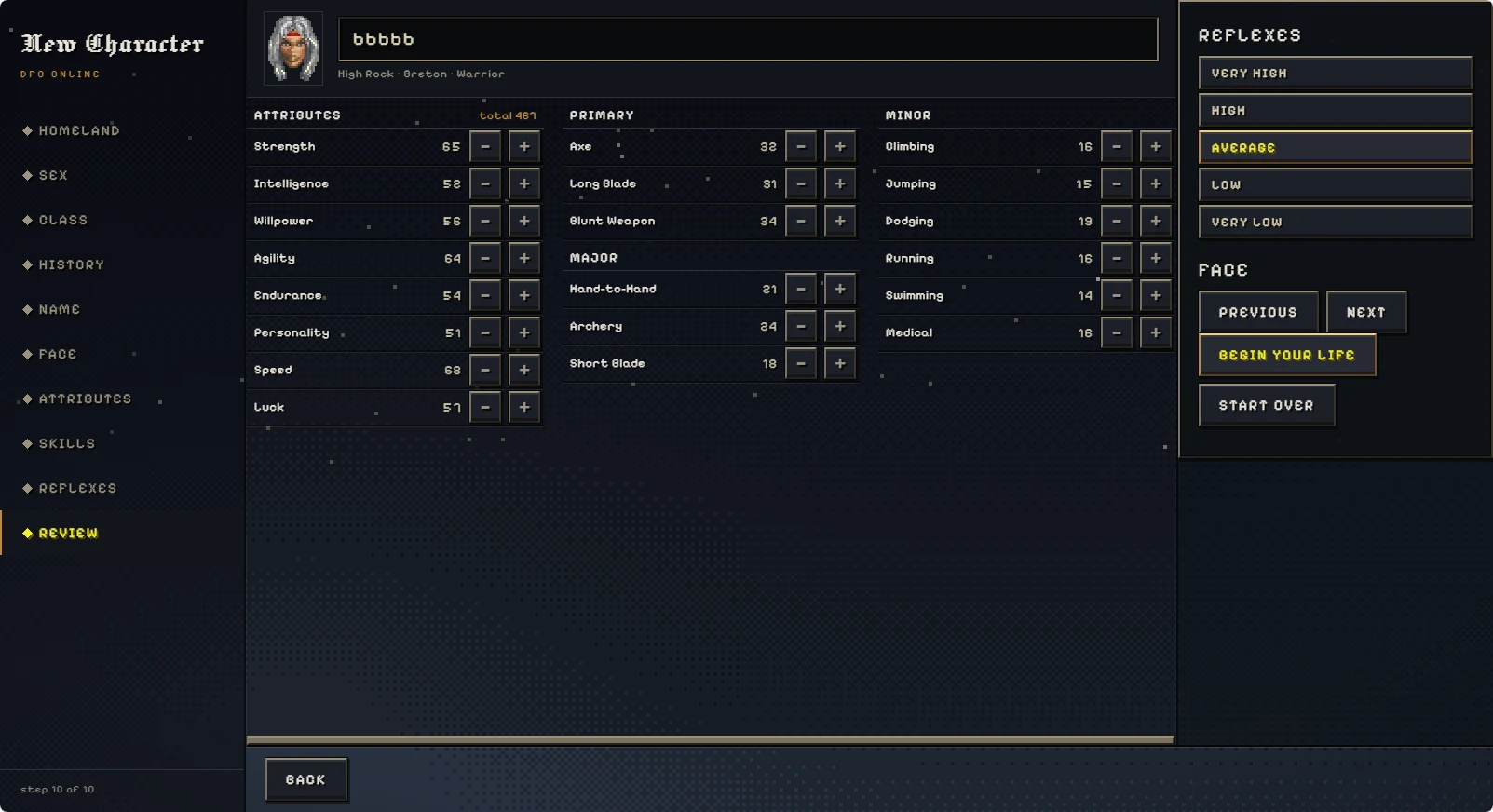
- Choose New online character, then follow homeland, class, history, name and appearance prompts.
- At Review, select BEGIN YOUR LIFE. Wait for the world to load. Your friend completes this using their own account.
- On a later visit, use Play on your saved online character. A Never saved probe character is not your completed character; do not delete other saves to fix it.
Why this step matters
Start with New online character. A new offline character is not automatically eligible for Bring online: that option checks historical online records. A message about missing Renown, a home or a cloud backup means you should create a new online character.
STEP 3 · WHAT TO DO
Check that both players are online
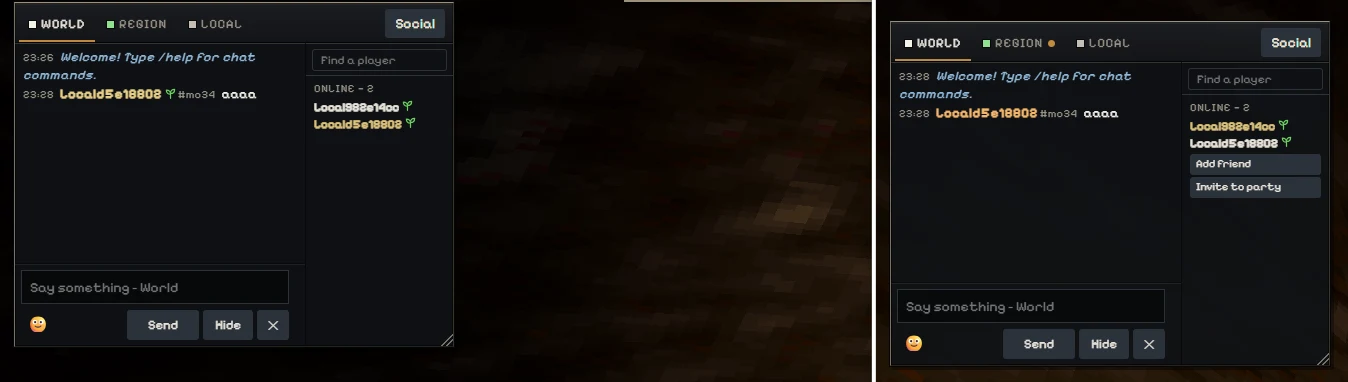
- Close other menus and press Enter to open chat. Select WORLD.
- Look for both names in the online list. One person sends a short message; the other replies. Confirm each message appears in both clients.
- On one computer, use separate browser profiles or Chrome and Edge with different accounts. Two ordinary windows can share the same login.
Why this step matters
World chat reaches players across locations. Seeing a message proves it arrived; it does not mean the sender is standing beside you.
STEP 4 · WHAT TO DO
Invite your friend to a party
- Select your friend in the chat player list and click Invite to party.
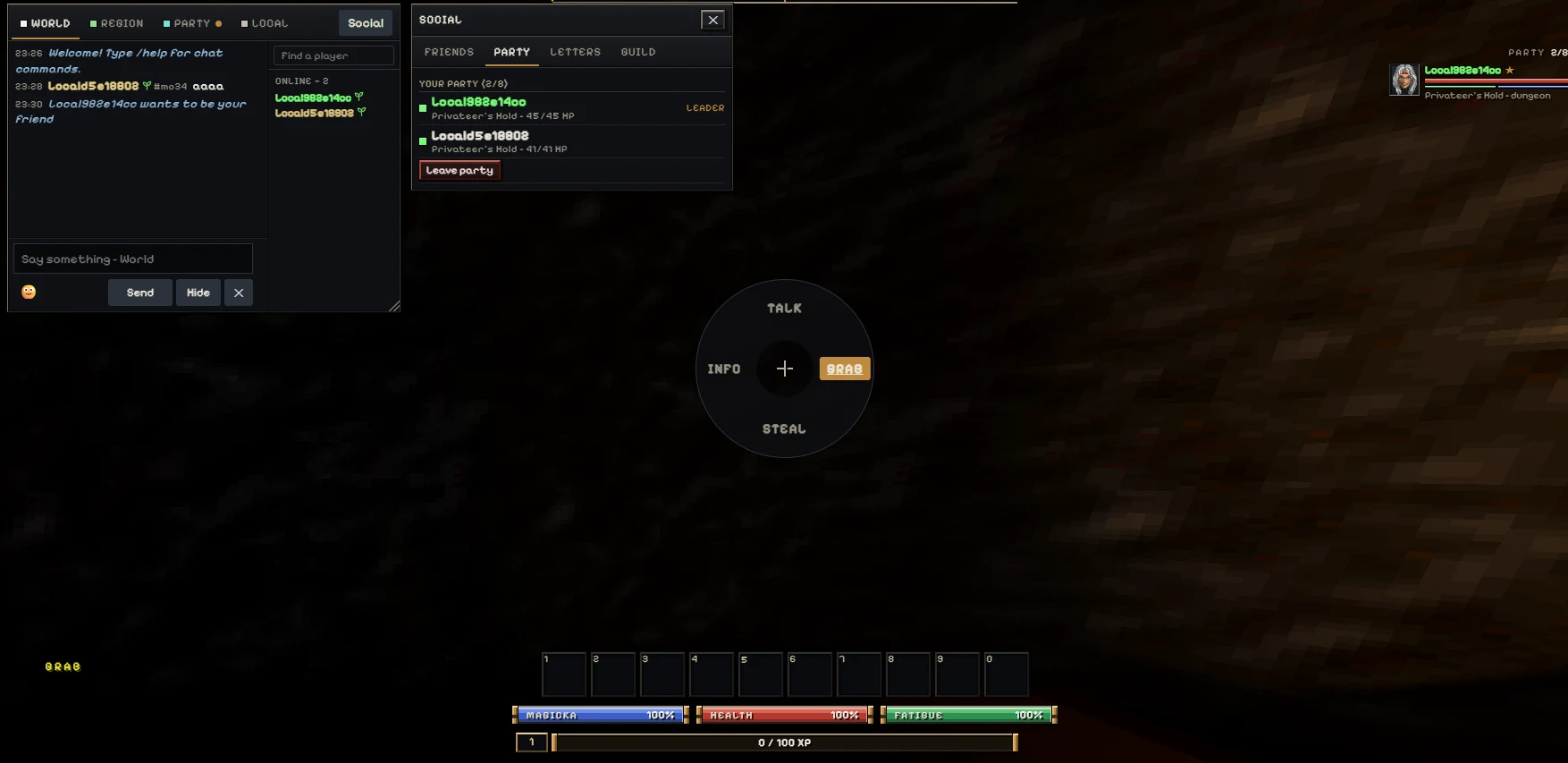
- In the other client, open Social → Party. Under Party invitations, select Accept.
- Both players check Social → Party. YOUR PARTY (2/8) lists the two members; LEADER identifies the party leader. Do not click Leave party.
Why this step matters
Adding a friend and forming a party are separate actions. Use the party invitation, then check the member list. A party can contain up to eight members; this is the client limit, not a live player count.
STEP 5 · WHAT TO DO
Leave the solo starting dungeon
- Close Social and Hide chat. Release left Alt if the Talk / Grab / Steal / Info wheel is open. Click the game to focus controls.
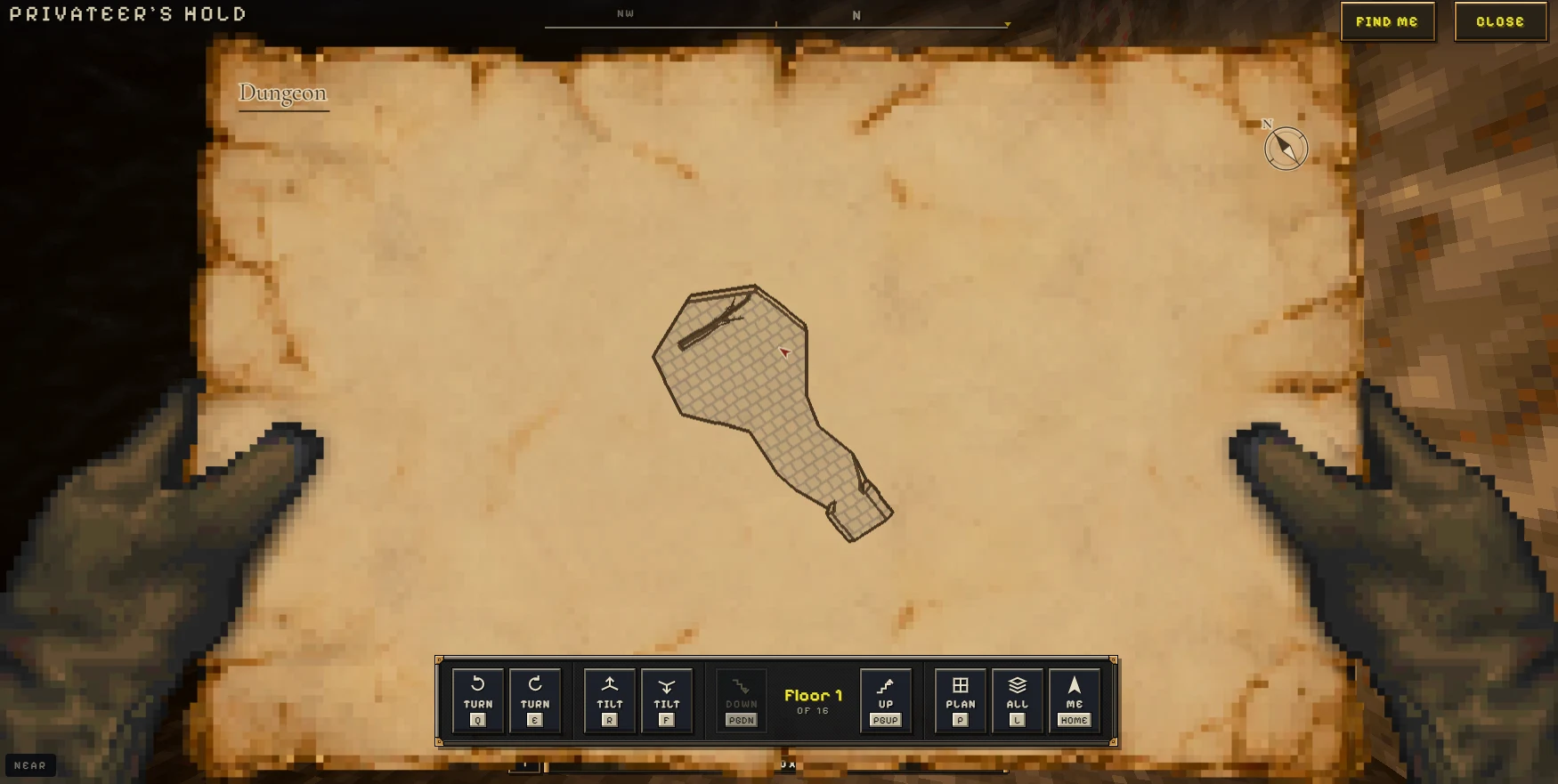
- Use WASD to move and the mouse to look. Press M for the local map; the red arrow marks your position. Use Find me or Home to recenter, and Page Up / Page Down to inspect floors.
- If a rat attacks, close the map, press Z to ready a weapon and hold the right mouse button while moving the mouse to swing. Online menus do not pause the world. Reach the outdoor exit separately.
Why this step matters
Privateer’s Hold is a solo tutorial dungeon. Two players can have identical location names, chat and belong to the same party without seeing each other there. Each player must leave it before meeting outside.
STEP 6 · WHAT TO DO
Meet outside and start exploring
- The first player outside waits near the entrance while the other finishes loading. Check that both are outside, not one inside a building.
- Turn to locate your friend. Take turns walking a few steps and stopping so both can see movement. Use PARTY chat to coordinate with your group.
- Explore together, and save before leaving. Keep your own backups and wait for the save confirmation. If someone disappears, check their location and connection before changing any files.
See each other → move → chat
A party does not teleport you.Play with friends ↗Why this step matters
Agree on the same outdoor landmark, such as the starting dungeon entrance. For another destination, match the region, town and exact building entrance. Party membership does not teleport either character.